What this checks
Checks whether your LinkedIn banner has the right wide shape, enough resolution, a supported file type, and a center-safe area for important text or logos.
Check the size, shape, file type, transparency, safe area, and mobile crop before you upload.
Opens with LinkedIn banner
Result
Add an image to see whether it is ready to upload.
Preview
Guidance area: keep important content inside the white frame when possible.
Mobile center crop: Keep names and logos near the center on mobile.
Mobile framing
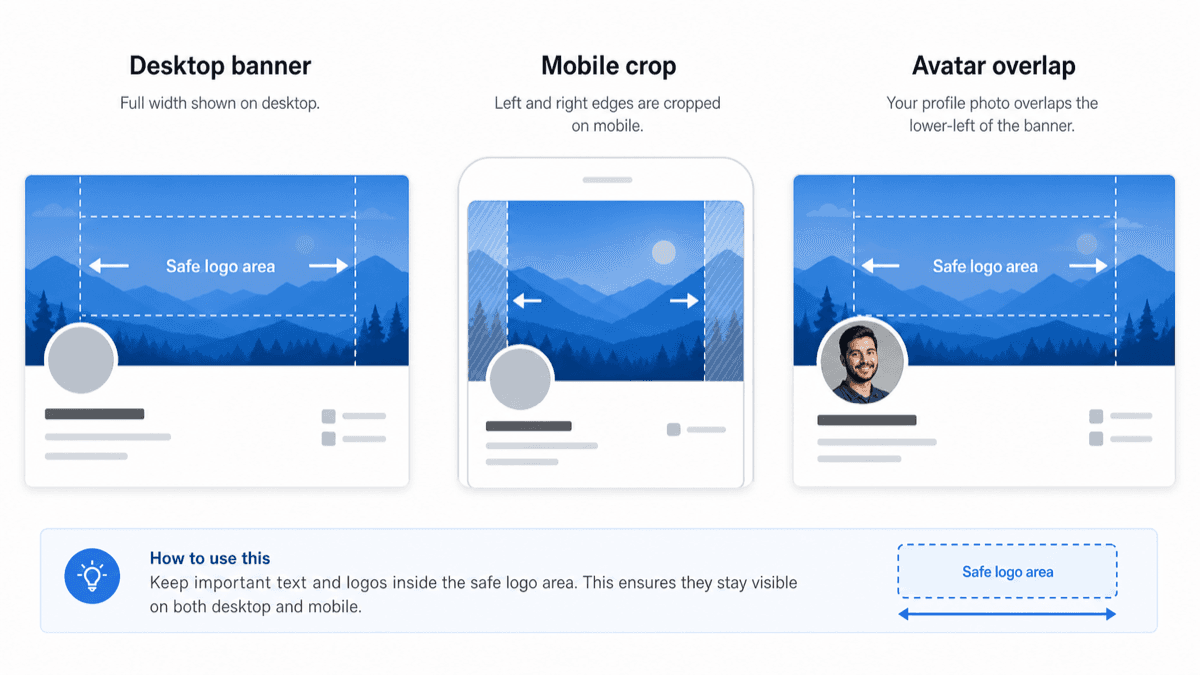
This is a static example. The checker above uses your actual image to show the personalized preview before upload.
Checks whether your LinkedIn banner has the right wide shape, enough resolution, a supported file type, and a center-safe area for important text or logos.
LinkedIn banners can look fine on desktop but lose edge content on mobile. Text, logos, or faces near the left and right edges are the most common risk.
Use the guidance preview to keep important content near the center. The crop overlay is an approximation of where side content may be trimmed on smaller screens.
This check helps you avoid obvious LinkedIn banner crop problems, but LinkedIn can still adjust display details across devices.